The Genie assistant
The Genie assistant is an LLM agent that sits in the chat panel next to the genome browser. It runs on the OpenAI Codex CLI app-server (codex app-server), which Genie's local backend starts and talks to over JSON-RPC on standard input and output. For each chat, the backend gives the runtime the instructions and the declared tools of one agent mode. When the model calls one of those tools, the backend executes the call: it reads or edits the project's stored browser state, queries the ENCODE portal, reads bigWig files or writes result files. The browser panel then reloads the stored state.
Some tools also return a citation token of the form [[cite:...]] that points to a record the tool stored. If the agent copies that token into its answer, the chat draws it as a numbered chip that opens the stored record. The tools, not the model, issue citation tokens. See Citations and evidence.
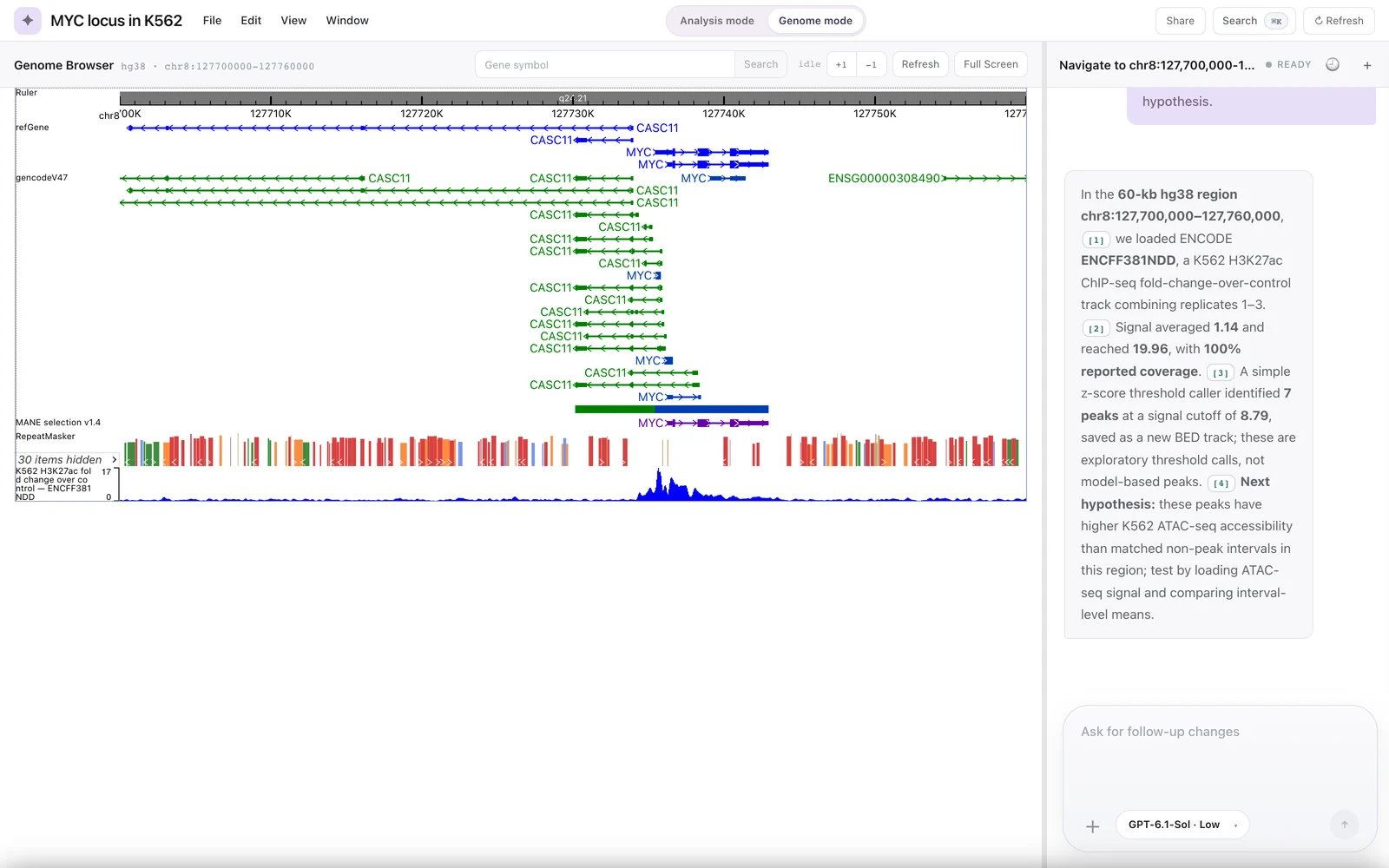
The last turn of the MYC demonstration session: the agent's summary with four citation chips, next to the browser on chr8:127,700,000-127,760,000 (hg38).
Where the assistant is available
| Build | Assistant | How to turn it on |
|---|---|---|
| Desktop app (Electron) | On by default | Install the Codex CLI. Without it the app starts with AI features turned off. |
| Local web app (Vite UI + local backend) | Off by default | Set VITE_GENIE_ASSISTANT_ENABLED=true when you start the UI in local mode. |
| Cloud web deployment | Not available | The cloud build shows projects and the browser only. Analysis-mode routes redirect to Genome mode. |
The two demonstration sessions shown in these docs (at the MYC and ALB loci) ran in the local web app, with the backend on port 8787 and the UI on port 4000. See Configuration and Desktop and cloud builds.
Requirements
- The local backend. The backend starts the agent runtime and executes every Genie tool call. The desktop app starts it for you on
127.0.0.1. In the local web app you run it yourself (default port 8787; the UI connects tows://localhost:8787/ws). - The Codex CLI on the same machine. If
GENIE_CODEX_COMMANDis set, the desktop app uses only that path; otherwise it looks for thecodexcommand at/opt/homebrew/bin/codex, then/usr/local/bin/codex, then through your login shell. If it finds none, the chat shows AI Features Unavailable and "Install the Codex CLI to use assistant chats on this desktop app." - Model access. The CLI must be signed in, or otherwise configured, with access to a model provider. Genie does not manage sign-in. The model list in the chat comes from the CLI.
The runtime also loads your own user-level Codex configuration, such as instruction files and MCP servers. That configuration can change how the agent behaves. See Runtime, approvals and safety.
The chat panel
The chat panel is on the right of every project workspace. Each chat belongs to one project and one agent mode.
Header
- Session title and status. A new chat is titled "New Chat" (shown as "New Chat (Draft)") until you send the first message. The status reads Ready, Thinking (waiting for the model), Responding (text is streaming) or Error.
- Chat history (clock icon) opens the Chat History overlay, where you can reopen an earlier chat of this project. Shortcut: Cmd+Alt+Y.
- New chat (+) starts a new chat in the current mode and keeps the model and effort you picked. Shortcut: Cmd+Alt+G.
- Rename Session (Cmd+Alt+R) and Delete Session (Cmd+Backspace) are in the Edit menu and the command palette. Titles are limited to 36 characters.
When you reopen a chat, the backend resumes the runtime thread and replays the messages. The chat's citation records are reattached, so chips in earlier answers still open.
Composer
- The placeholder reads "Ask Codex anything, @ to add files, / for commands, $ for skills" in a new chat and "Ask for follow-up changes" afterwards. The @, / and $ hints are not implemented in Genie's composer.
- Enter sends; Shift+Enter adds a new line. While a turn runs, the send button becomes Stop response, which interrupts the turn.
- Paste images into the composer to attach them. They are saved in the chat's directory and sent with the message.
- Tag project asset (the + button at the bottom left) opens the Tag Project Asset picker. Tagged assets are added to your next message as structured text, so the agent knows which assets you mean.
- The model and reasoning effort are chosen at the bottom of the composer: as two menus when the composer is wide enough, or otherwise as one Model and reasoning settings button that shows the current choice, for example "GPT-6.1-Sol · Low", and opens a two-column picker. The models are those the CLI reports; the efforts are those the model supports, shown as Low, Medium, High and Extra High. The choice is stored per chat. See model list and effort.
Tool cards
Each tool call appears in the conversation as a card with the tool name, a RUNNING, DONE or FAILED state and, for longer calls, its duration. Click a card to expand it and see the arguments and the JSON result the backend returned to the model. The result is where you find the exact numbers, the absolute peak cutoff, the search relaxations and any error message. A tool that returns a failure object (for example the 5 Mb scope refusal) still shows DONE, so read the result.
The runtime's own built-in actions can appear too. Shell commands show as cards with a $ icon and a live terminal; file edits and MCP tool calls also show as cards. These are not Genie tools. The runtime's built-in web search does not appear as a card; it is recorded only in the chat's runtime log. See Runtime built-in tools.
If the runtime asks you a question during a turn, a form appears with an "Enter your response..." field and a Submit Response button.
What happens in one turn
The browser refreshes after genome_navigate, genome_add_track and genome_call_peaks, the tools that change the stored browser state. There is no direct channel from the agent into the rendered browser: the agent cannot see the picture, and the numeric tools read the track files themselves, not the image.
What the assistant is good for, and what to check
The demonstration sessions show the kind of work the assistant handles: step-by-step plain-English requests in which the agent retrieved public data, measured it and cited the tool records.
- Navigating to coordinates. Give
chr:start-endcoordinates. A gene symbol does not take the view to the gene: it is stored without coordinates, and the browser falls back to the genome's default region. Use the browser's gene search box to find a gene. - Finding and loading ENCODE files. The agent fills structured search fields from your words and loads the chosen file. See Public data search.
- Simple measurements. Viewport summaries, signal statistics, threshold peak calls, quantification at features and binned Pearson correlation. See Measurements.
- Plans and reports. In Analysis mode the agent writes saved Studio outputs. See Plans and outputs.
- Open the chips. A chip shows which stored record a claim points to, not that the sentence is correct. Viewport statistics are cited to a record that holds only the region, not the numbers.
- Read the tool cards. The search result lists any relaxation of your query; the peak result gives the absolute cutoff and the method note "not a model-based peak caller".
- Treat interpretations as the model's own. In logged test sessions, the agent gave correct numbers followed by unsupported inferences, read tool artifacts as biology, and took actions outside the declared tools. Peak counts are fragment counts, and a correlation coefficient from one window is not a measure of agreement.
- Uncited text is not blocked. The agent is told to mark uncited claims, but nothing enforces it.
See also Agent modes, the Tool reference and Limitations and known issues.