Agent modes
Genie has three agent modes. Each mode has its own developer instructions and its own set of declared tools, and a chat is offered the Genie tools of one mode only. Genome mode declares 14 tools, Analysis mode 6 and Asset import mode 8; because some tools are shared, there are 23 distinct tool names in all. See the Tool reference for the full matrix.
| Genome mode | Analysis mode | Asset import agent | |
|---|---|---|---|
| Internal name | regular | analysis (plan is an alias) | asset-import |
| Route | /projects/:projectId | /projects/:projectId/analysis (alias /projects/:projectId/plan) | Runs inside the Analysis screen |
| Header label | "Genome mode" | "Analysis mode" | "Asset import agent" |
| Composer title | "Genome workspace" | "Analysis workspace" | "Asset import agent" |
| Center panel | Genome browser | Analysis screen and Discovery Studio | Analysis screen |
| Declared tools | 14 | 6 | 8 |
| Reasoning effort | Your choice | Your choice | Always "medium" |
Switching modes
- Use the Analysis mode / Genome mode toggle in the center of the header.
- Or use View → Switch to Analysis Mode (Cmd+1) and View → Switch to Genome Mode (Cmd+2), also available in the command palette (Cmd+K).
When the assistant is turned on, opening a project from the home screen takes you to Analysis mode. When the assistant is off (for example in the cloud deployment), the mode switches are hidden and Analysis-mode routes redirect to Genome mode. In Analysis mode the genome-browser menu entries, such as the Track Manager, are hidden.
Genome mode
Genome mode is the workspace with the genome browser on the left and the chat on the right. The agent can move the view, search ENCODE, load tracks, summarize the viewport and run the four computation tools on the tracks in the stored browser state.
Tools (14): genome_get_current_region, genome_navigate, genome_list_assemblies, genome_list_tracks, genome_add_track, genome_describe_viewport, genome_signal_stats, genome_call_peaks, genome_quantify_at_features, genome_correlate_tracks, public_data_search, project_list_assets, project_read_analysis_plan and create_html_artifact.
Instruction rules
The Genome-mode developer instructions tell the agent to:
- use
genome_describe_viewportbefore describing visible signal or feature counts, and not to infer them without it; - start the computation tools at
scope: "viewport"and widen the scope only when you ask or the hypothesis needs it; - keep any limitation a tool reports (scope too large, simple method) in its wording;
- map your request into the structured fields of
public_data_search(assay, target, biosample, organism, assembly, file type, free text) itself, and load chosen results withgenome_add_track; - not claim that a track represents a tissue, assay, target or accession without copying the candidate's citation token after the claim;
- call
project_read_analysis_planfirst when you ask it to follow the plan made in Analysis mode; - place a returned citation token immediately after the claim it supports. "Never invent citation tokens. If no citationToken is available, inspect the source first or clearly mark the claim as uncited."
They also tell the agent that each project has one immutable genome (create a new project for another genome), and that custom track authoring is unavailable while the browser renders with the eg3 engine. The three custom-track tools are declared unavailable and are not offered to the model.
genome_navigate moves the view only for chr:start-end coordinates or an explicit chromosome, start and end. The tool's description mentions gene symbols, but a symbol is stored without coordinates, so the view does not go to the gene (the browser falls back to the genome's default region). Give coordinates, or use the browser's gene search box yourself. Every navigation prompt in the reported sessions gave coordinates.
Analysis mode
Analysis mode is for working with the project's imported assets and writing plans and other saved outputs. The center panel is the Analysis screen instead of the genome browser. "Plan" is an alias: the /plan route shows Analysis mode, and the backend treats a plan session as analysis.
Tools (6): project_list_assets, project_read_asset, project_update_asset_source, project_inspect_local_folder, project_import_local_folder and create_html_artifact. In this mode create_html_artifact saves a persistent Studio output instead of a chat-only page.
The Analysis-mode instructions tell the agent to start from the imported assets (project_list_assets first, then project_read_asset before strong recommendations), to cite with the returned tokens and never invent them, to treat Analysis mode as separate from the genome browser workspace ("Do not use genome track-editing tools here."), and to choose the Studio output kind deliberately (report, data table, genome plan, track recommendation, mind map, infographic, slide deck, figure draft, hypothesis cards or saved view). They also give a light-mode colour palette for generated HTML.
Analysis mode has no genome tools. It cannot navigate, load tracks or measure signal.
The Analysis screen
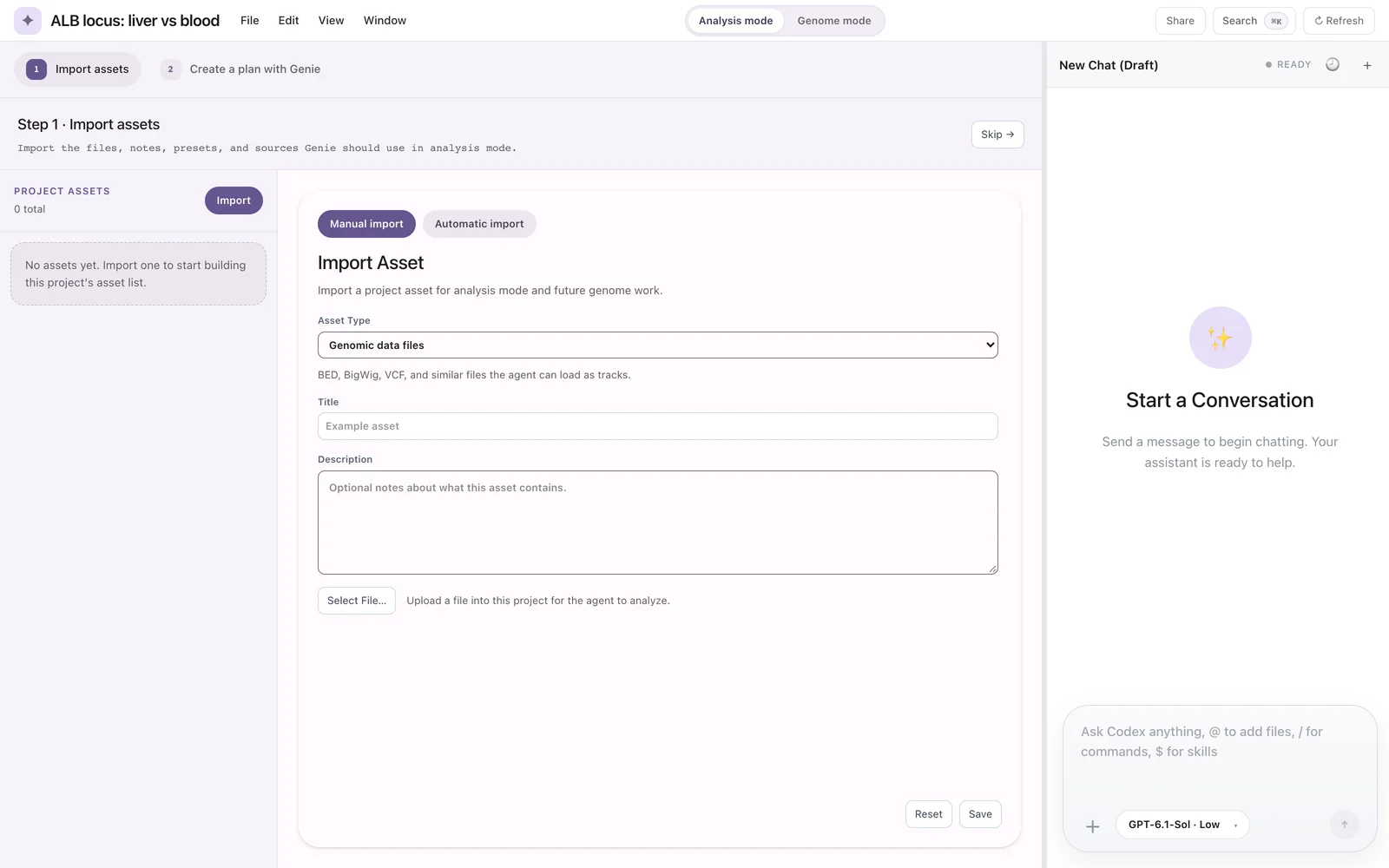
Step 1 of the Analysis screen. The step bar reads "1 Import assets" and "2 Create a plan with Genie".
The Analysis screen has two steps:
-
Import assets. "Import the files, notes, presets, and sources Genie should use in analysis mode." The Project Assets list on the left shows what is already imported. The import panel has two tabs:
- Manual import: choose an Asset Type, enter a Title and Description, then Select File… and Save. Uploads are limited to 100 MB.
- Automatic import: the Automatic Asset Import form takes local files or folders (one path per line; the desktop app adds Choose folders…) and remote URLs. Import Asset hands the list to the Asset import agent.
Skip moves on without importing. Importing an asset does not add a track to the browser. See Project assets.
-
Create a plan with Genie. This step shows Discovery Studio: the Research outputs header with Import more assets, a Generate row, and Saved outputs with filters and a viewer.
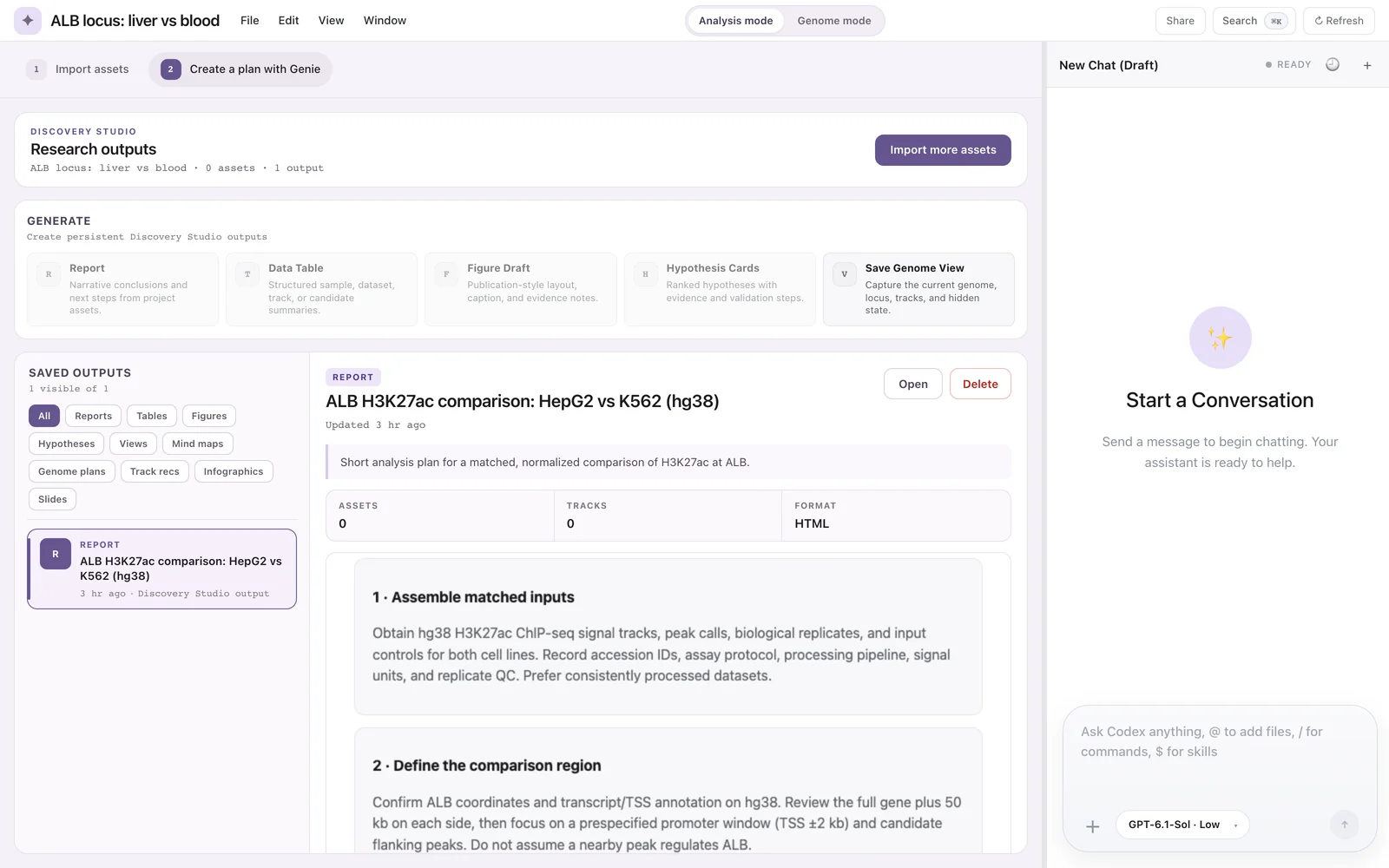
Step 2 with Discovery Studio. The saved Report is the plan from the ALB demonstration's Analysis-mode chat.
Discovery Studio
Discovery Studio holds the project's saved outputs. The Generate row has Report, Data Table, Figure Draft and Hypothesis Cards, which send a prepared request to the agent, and Save Genome View, which captures the current genome, locus, tracks and hidden tracks without the agent. The four agent buttons need at least one imported asset ("Import project assets first."). You can also ask for an output in the chat. See Plans and Studio outputs.
Asset import agent
The Asset import agent discovers, inspects and imports project assets from local paths and remote URLs. It runs inside the Analysis screen when you press Import Asset on the Automatic import tab. Genie builds the request from your lists ("Run automatic asset import for this project. Handle every provided source. ...") and sends it to an asset-import chat. These chats use effort "medium", do not show the model picker, and are not listed in chat history.
Tools (8): project_list_assets, project_read_asset, project_update_asset_source, project_inspect_local_path, project_import_local_path, project_inspect_remote_source, project_import_remote_source and project_write_asset_artifact.
Its instructions tell it to inspect each source before importing it, to skip duplicates, to prefer the generic local-path tools (which accept files or folders), to save short Markdown notes such as notes/import-summary.md inside an asset folder when useful, and: "Do not use genome tools here."
Automatic import needs the assistant. When the assistant is off, the form reports "Automatic import is only available in the desktop app."
Tools shared between modes
| Tool | Genome | Analysis | Asset import |
|---|---|---|---|
project_list_assets | yes | yes | yes |
project_read_asset | yes | yes | |
project_update_asset_source | yes | yes | |
create_html_artifact | yes (chat page) | yes (Studio output) |
Every other tool belongs to one mode only.