Plans and Studio outputs
The agent can write HTML pages with create_html_artifact. What happens to a page depends on the mode:
- In Analysis mode it becomes a Studio output: a saved, typed page in the project's Discovery Studio library, such as a plan, a report or a data table. The analysis plan in the ALB demonstration was saved as a Report.
- In Genome mode it is an HTML artifact that belongs to the chat and opens from an Open button.
Genome mode can read the latest Studio output with project_read_analysis_plan, which is how a plan written in Analysis mode is carried into Genome-mode work.
Studio outputs in Analysis mode
Kinds
Every Studio output has a kind. The agent sets it in create_html_artifact; a missing or unknown kind becomes report.
| Kind | Library filter | Intended for (from the Analysis-mode instructions) |
|---|---|---|
report | Reports | Biological conclusions, narrative summaries, experiment readouts |
data-table | Tables | Dataset comparisons, sample metadata summaries, ranked candidates |
genome-plan | Genome plans | Browser or session plans, locus review plans, analysis implementation plans |
track-recommendation | Track recs | Display strategies and track grouping recommendations |
mind-map | Mind maps | Gene, enhancer, pathway or regulatory relationship maps |
infographic | Infographics | Compact visual explainers or figure drafts |
slide-deck | Slides | Lab meeting or collaborator presentation drafts |
figure-draft | Figures | Publication-style figure drafts with captions and evidence notes |
hypothesis-cards | Hypotheses | Ranked hypothesis cards with validation steps |
saved-view | Views | Captured genome browser views |
An output can also carry a description, the asset ids and track ids it used, a genome region and extra metadata. Writing again with the same artifactId replaces an output; otherwise each call adds a new one, so earlier outputs are kept.
Asking for an output
There are two ways:
- Ask in the chat. For example, the ALB demonstration ended with a one-turn Analysis-mode chat: "Create a short analysis plan for comparing H3K27ac signal at the ALB locus between HepG2 and K562 on hg38. Use the Report output." The agent saved the Report "ALB H3K27ac comparison: HepG2 vs K562 (hg38)". The plan is prospective: the project had no imported assets, so the Report is a proposal, not a summary of project data.
- Use a Generate button in Discovery Studio: Report, Data Table, Figure Draft or Hypothesis Cards. Each sends a prepared request to the Analysis-mode agent: call
project_list_assets, read the relevant assets withproject_read_asset, cite with the returned tokens, then callcreate_html_artifactexactly once with the matching kind, a short description, the source asset ids and, when the evidence points to a locus, a genome region. These buttons need at least one imported asset ("Import project assets first.") and are disabled while the agent is responding.
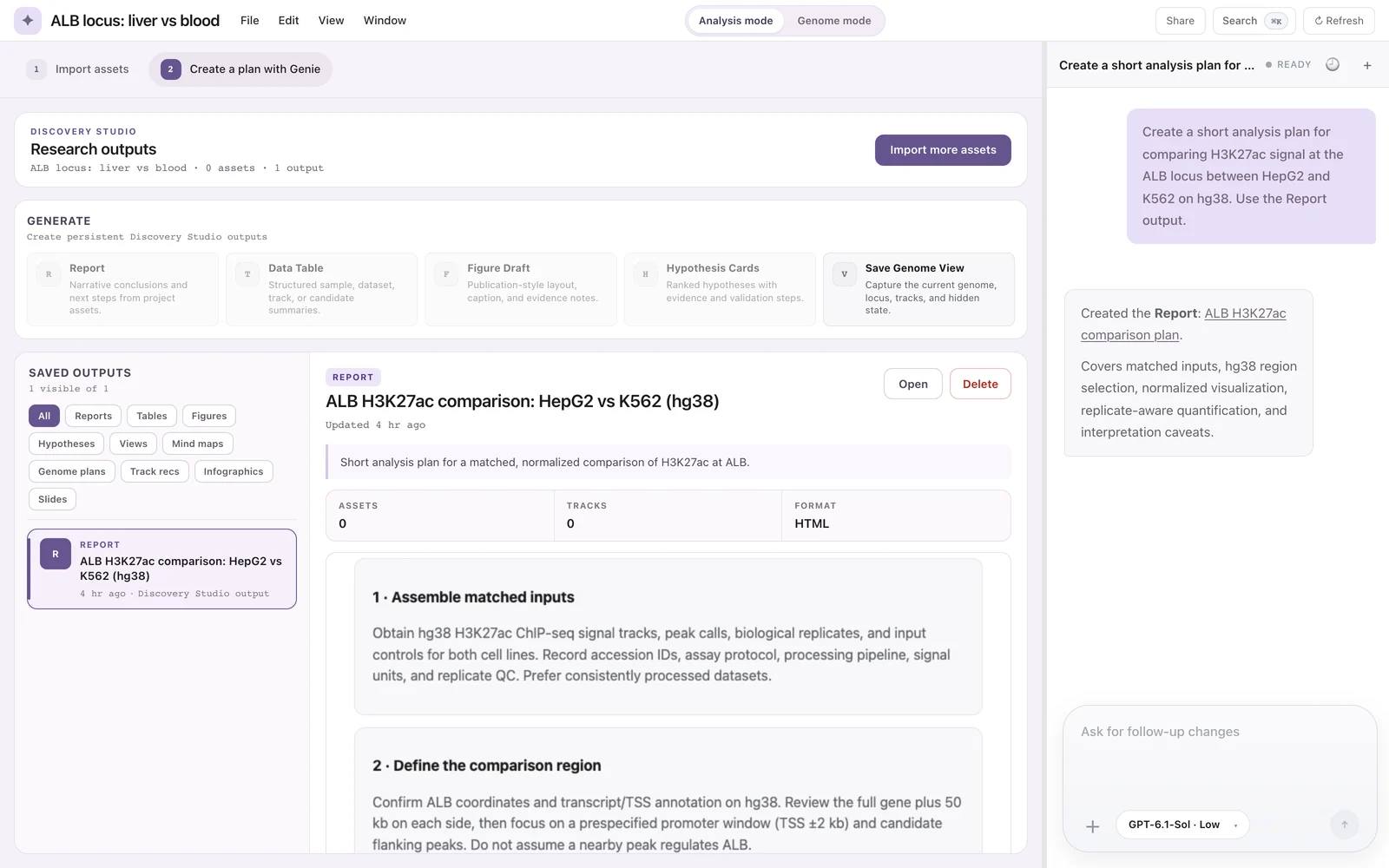
The Analysis-mode turn of the ALB demonstration and the saved Report in Discovery Studio.
The Saved outputs library
Saved outputs lists the project's outputs, with filters (All, Reports, Tables, Figures, Hypotheses, Views, Mind maps, Genome plans, Track recs, Infographics, Slides). Selecting an output shows its kind, title, description, the number of assets and tracks it used, its format and a sandboxed preview. The buttons are:
- Open: opens the output's HTML in a new browser tab;
- Restore: for saved views only (see below);
- Delete: click once to turn it into Confirm, then click again to delete.
Saved genome views
Save Genome View captures the project's current genome, view region, tracks and hidden tracks without the agent. The output is titled "Saved genome view - <region>" and stores the snapshot in its metadata. Restore writes the snapshot back to the browser state. A view can be restored only into a project with the same genome; otherwise Genie shows "This saved view uses a different genome. Create a new project with that genome to restore it."
From a plan to Genome mode
project_read_analysis_plan is a Genome-mode tool. It returns the latest Studio output of the project (its metadata, HTML and extracted text) and a studio-output citation whose excerpt is the plan text, up to 1,800 characters. The Genome-mode instructions tell the agent to call it first when you ask it to implement or follow the plan made in Analysis mode.
Keep in mind:
- It reads the most recent output of any kind. If you saved a genome view or generated a data table after writing the plan, that newer output is what Genome mode reads.
- A plan is the model's proposal. Genome mode has its own 14 tools; steps a plan proposes that no tool can do (for example a statistic Genie does not compute) will not be carried out as written. Compare what was computed with what the plan proposed.
- The citation shows which saved output a claim points to, not that the output is correct.
HTML artifacts in Genome mode
In Genome mode, create_html_artifact writes a standalone HTML page for the chat. The chat shows the artifact's title with an Open button, which opens the page in an overlay with a sandboxed frame. The artifact is not added to Discovery Studio and issues no citation.
| Limit or rule | Value |
|---|---|
| Maximum size | 750,000 bytes of HTML; larger pages fail with "html exceeds 750000 bytes." (the same limit applies to Studio outputs) |
| Replacing | Pass the same artifactId |
| Storage | projects/<projectId>/sessions/<sessionId>/artifacts/<artifactId>/index.html |
Where outputs are stored
All paths are under the backend's session-data folder (genie/session-data/ in the local web app, or the desktop app's user-data folder).
| What | Path |
|---|---|
| Analysis state and the Studio library index | projects/<projectId>/analysis/state.json |
| Each Studio output | projects/<projectId>/analysis/studio/<outputId>/index.html |
| Latest Analysis-mode artifact | projects/<projectId>/analysis/artifact/index.html |
| Genome-mode HTML artifacts | projects/<projectId>/sessions/<sessionId>/artifacts/<artifactId>/index.html |
| Asset notes written by the Asset import agent | inside the asset's folder, for example notes/import-summary.md |
Known issue: raw tokens in saved reports
Citation chips exist only in the chat. If the agent writes [[cite:...]] tokens into the HTML of a Studio output or artifact, they are not resolved there, and a saved Report can print raw token text. To check a claim in a saved output, find the same claim in the chat that produced it and open its chip there.
See also Agent modes, Citations and evidence and Project assets.