Adding tracks
A project's browser starts with the genome's default tracks. You can add more in four ways:
| Route | Best for |
|---|---|
| Public Data Hubs | Browsing curated collections such as ENCODE, Roadmap, IHEC and 4DN |
| Remote Tracks | A file you can reach by URL (bigWig, bigBed, tabix-indexed BED, .hic, and so on) |
| Track Manager: Add Defaults | Restoring a default track you removed |
| The assistant | Finding ENCODE files from a plain-English description |
All of these are Genome-mode features. Every added track is saved in the project, so it is still there when you reopen the project.
Default tracks
When you create a project, its browser gets the genome's default tracks. For hg38 these are Ruler, refGene, gencodeV47, MANE selection v1.4 and RepeatMasker. Defaults for other genomes are listed in Genome assemblies.
Public Data Hubs
A public data hub is a JSON list of tracks published by the WashU Epigenome Browser team and others, mostly hosted on vizhub.wustl.edu. Genie offers the hubs listed for the project's genome: 14 for hg38, 23 for hg19, 10 for mm10, 58 for SARS-CoV-2, and a few for galGal5, dm6, sacCer3 and Pfal3D7. Other genomes have none.
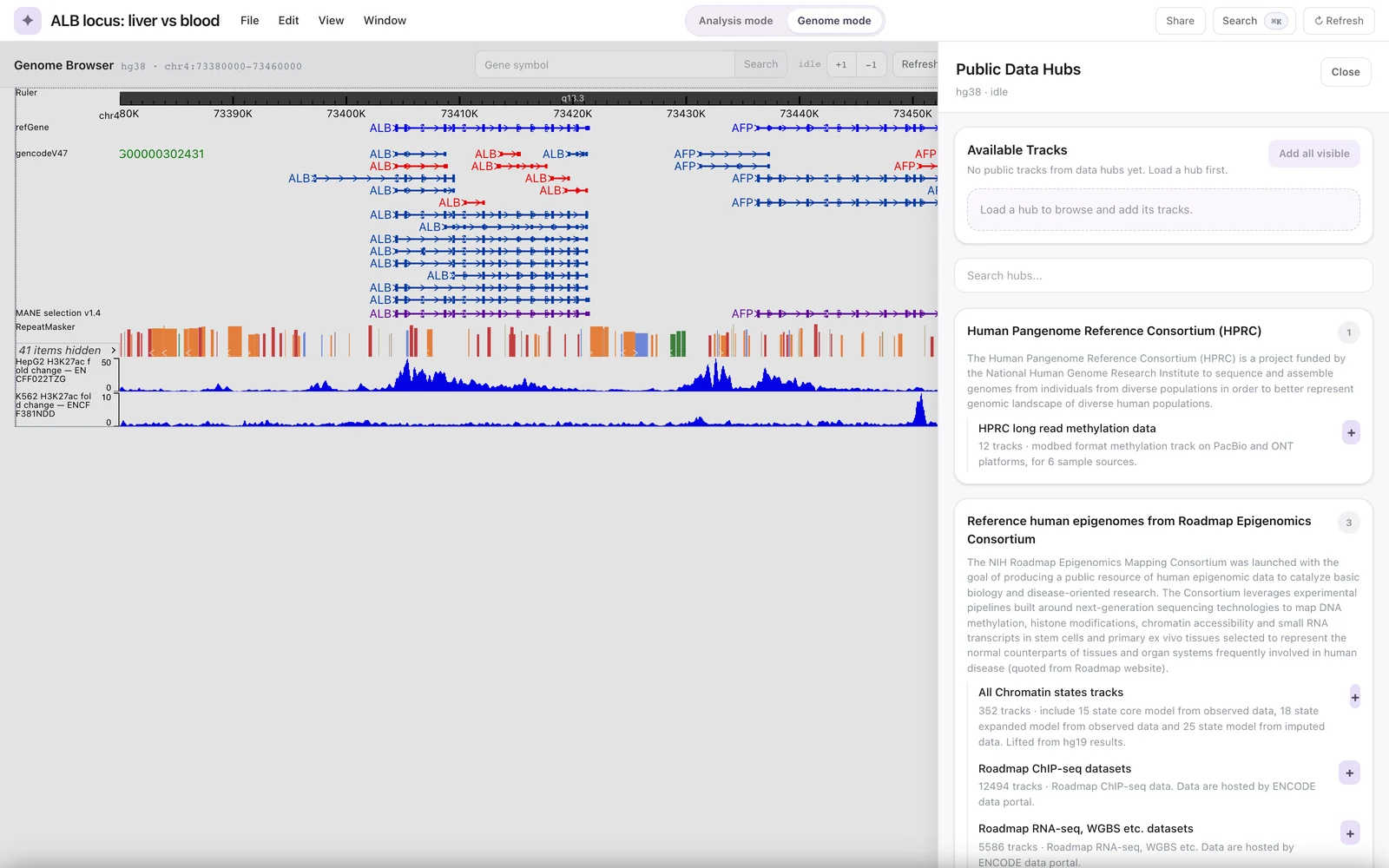 The Public Data Hubs sheet for an hg38 project before any hub is loaded.
Step by step
- Open File → Open Public Data Hubs…, View → Show Public Data Hubs, or the command palette entry. The sheet slides in from the right, titled Public Data Hubs with the genome and status under it.
- Scroll the hub list, or type in Search hubs.... Hubs are grouped by collection (for example "Human Pangenome Reference Consortium (HPRC)" or "Reference human epigenomes from Roadmap Epigenomics Consortium"), with the number of hubs in each group and a description of the collection. Each hub row shows its name and "N tracks · description".
- Click + on a hub to load it. A spinner shows while it loads, then the button becomes ✓.
- The hub's tracks now appear under Available Tracks, which reports "N loaded from public hubs". Some hubs mark tracks to show on load; those are added to the browser straight away.
- Type in Search loaded tracks... to filter. The table has the columns Name, Data hub, Format, Genome and Add.
- Click + in the Add column to add one track, or Add all visible to add every track that the current filter shows. Tracks already in the browser show ✓ instead of +.
- Close the sheet with Close, Esc, or by clicking the dimmed area.
Tracks are matched by URL, so the same file is not added twice.
Some hubs contain thousands of tracks (the Roadmap ChIP-seq hub lists over 12,000). Filter with Search loaded tracks... before using Add all visible.
Hub files are fetched directly by your browser. Genie accepts the loose JSON style that many hubs use (comments, single quotes, unquoted keys, trailing commas), resolves relative URLs against the hub's address, and rewrites Dropbox share links and ftp://ftp.ncbi.nlm.nih.gov links to direct HTTPS downloads. A hub track whose type the engine cannot draw is still added, but is listed in the "not rendered" notice described in Track types.
Remote Tracks
Use the Remote Tracks dialog when you have a file URL.
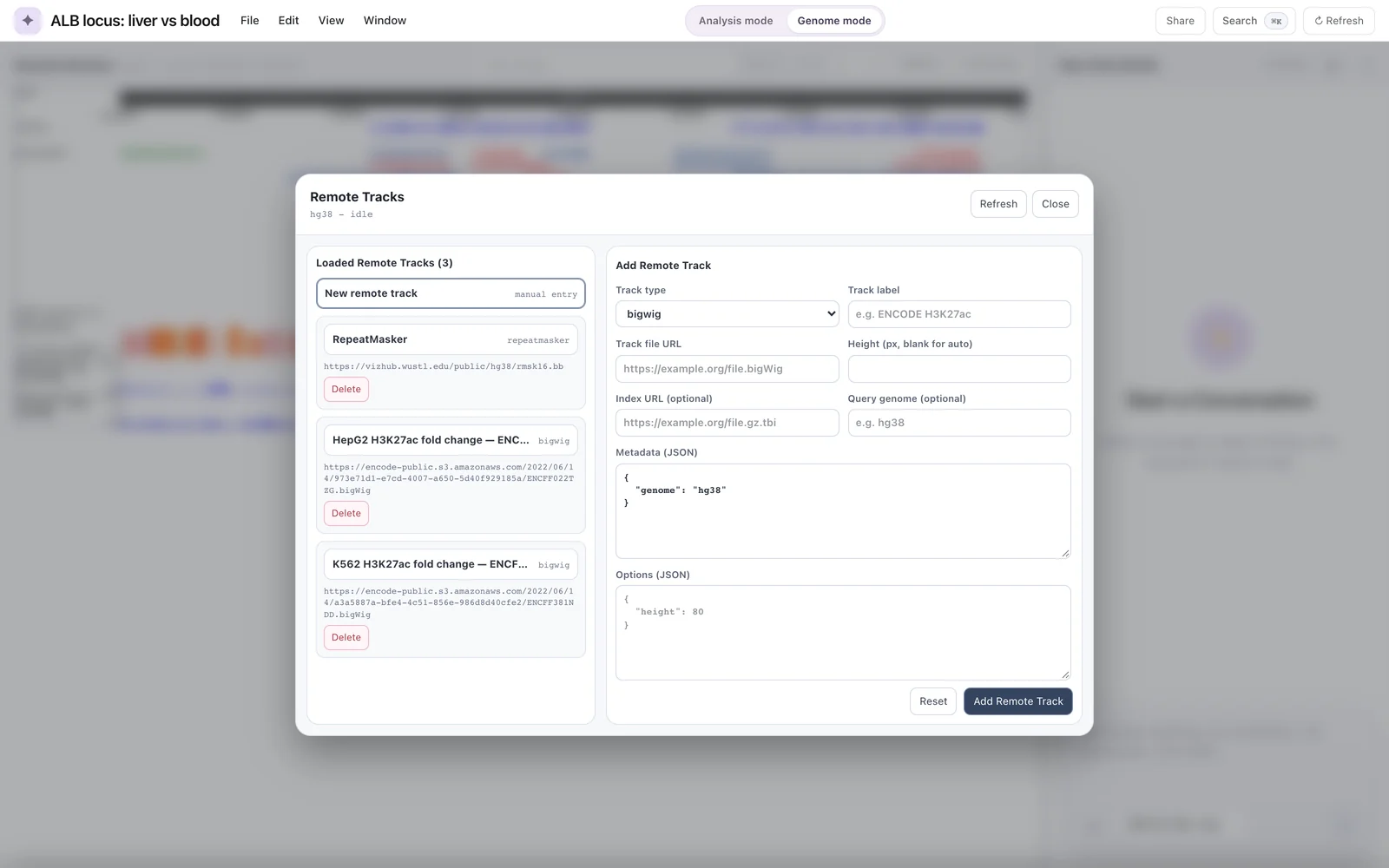 The Remote Tracks dialog. The left column lists every track in the project that has a file URL.
Open it with File → Open Remote Tracks… or from the command palette.
The dialog
The left column, Loaded Remote Tracks (N), lists every track in the project that has a URL, including tracks added from hubs or by the assistant. Click a track to edit it. Click New remote track to start a blank form.
Each listed track has a Delete button. Click it once and it turns into Confirm; click Confirm within 2 seconds to remove the track from the project. Otherwise it reverts.
Fields
| Field | Required | Notes |
|---|---|---|
| Track type | Yes | Defaults to bigwig. The list offers the 31 types that the eg3 engine renders and that Genie knows from the WashU format list. See Track types. |
| Track label | Yes | The name shown on the track, for example ENCODE H3K27ac. |
| Track file URL | Yes | For example https://example.org/file.bigWig. Must be reachable from your browser. |
| Height (px, blank for auto) | No | Clamped to 20–800 px. Leave blank to use the engine's default height. |
| Index URL | No | See below. Placeholder https://example.org/file.gz.tbi. |
| Query genome | Depends | The other assembly in a pairwise alignment, for example hg38. Required for genomealign. |
| Metadata (JSON) | No | Must be a JSON object. Pre-filled with {"genome": "<project genome>"}. |
| Options (JSON) | No | Display options passed to the renderer. Placeholder {"height": 80}. See Track settings. |
Click Add Remote Track to add the track (the button reads Save Remote Track when you are editing). Reset restores the form to its starting values. Messages such as "Remote track added" or a validation error appear above the buttons. Validation errors include:
- "Choose a supported track type"
- "Track label cannot be empty"
- "Track file URL cannot be empty"
- "Query genome is required for this track type"
- "Track height must be a number"
- "Metadata must be valid JSON" / "Metadata must be a JSON object"
- "Options must be valid JSON"
New remote tracks get an id of the form remote-<type>-<label>-<8 characters>.
Index URL rules
- bigWig, bigBed and .hic files carry their own index; leave Index URL blank.
- Tabix-indexed text formats (for example
bed,bedgraph,methylc,categorical,refbed,longrange,qbed,dbedgraph,vcf,genomealign,bedcolor,modbed) show the field as "Index URL (optional if colocated)". If the index sits next to the file under the conventional name (the file URL with.tbiappended), you can leave it blank. Otherwise give the index URL. - BAM files need a
.baiindex. The engine looks for it next to the file (the file URL with.baiappended), so place it there.
For the tabix formats, the file is expected to be sorted, bgzip-compressed and indexed. A plain, unindexed BED file is not a supported input for this route.
Query genome
genomealign tracks compare the project's genome with another assembly; enter that assembly's id (for example mm10) in Query genome.
Track Manager: Add Defaults
The Track Manager's Add Defaults section lists the genome's default tracks that are not currently in the project. Click one to add it back. When nothing is missing, the section says "All default tracks already added."
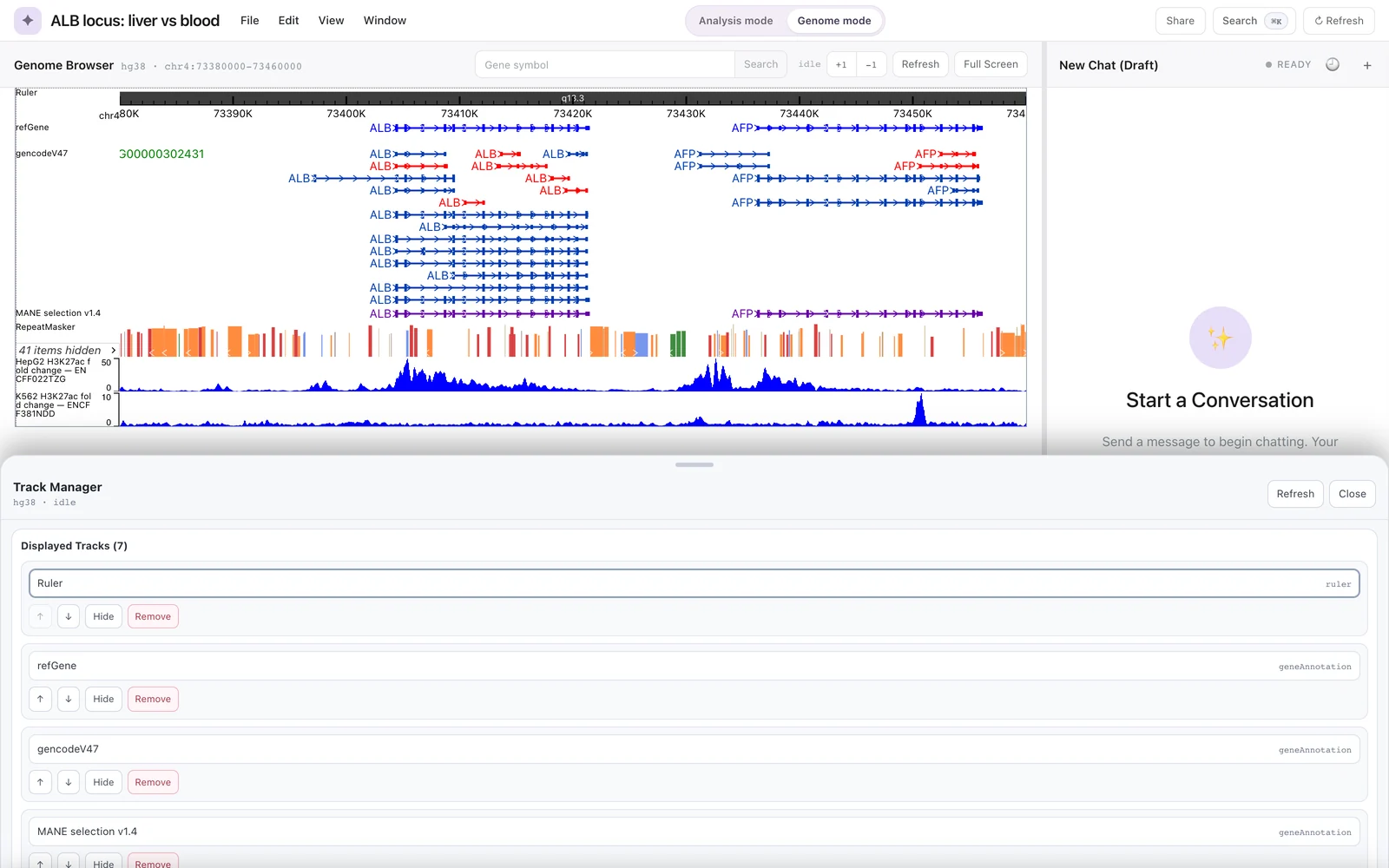 The Track Manager. Add Defaults appears further down the sheet.
Open the Track Manager with File → Open Track Manager… (Cmd+Alt+T). See Track settings for its other sections.
Tracks added by the assistant
In Genome mode, the assistant can find and load ENCODE files for you. A typical request is "Find public H3K27ac ChIP-seq fold-change signal for K562 on hg38 and load the best match." Two tools are involved:
public_data_searchqueries the ENCODE portal and returns ranked candidate files, each with a citation token you can open from the chat.genome_add_trackloads the chosen file into the browser by URL and type. It can also re-add one of the genome's default tracks by id.
Loading is always a separate step, so you can ask to see the candidates first. The new track appears in the browser when the tool finishes. The assistant does not change the order, height or visibility of tracks; use the Track Manager for that.
genome_call_peaks also adds a track: a BED file of the called intervals.
In earlier testing, the BED tracks written by genome_call_peaks did not render in the browser (the track showed "Error detecting chromosome naming"), because a plain BED file was read as if it were tabix-indexed. The interval file itself was written correctly. See Limitations.
For how the search works and how candidates are ranked, see Public data search. For the full tool list, see Tools.
Project assets do not add tracks
Importing a file as a project asset (for example a BigWig under "Genomic data files") stores it in the project's asset catalog. It does not add a track to the browser. See Project assets.
There is no direct "open local file" button in the browser. To show a file, host it somewhere your browser can reach and add it with Remote Tracks.