Projects and genomes
Everything in Genie happens inside a project. A project holds one genome browser (with its tracks and position), the project's assets, its chats, and the outputs saved in Analysis mode. Each project is tied to exactly one genome assembly.
Creating a project
- On the projects home, type a name in Project name and click Next.
- In the genome picker, click an assembly.
Genie creates the project as soon as you click the assembly. With the assistant on, the project opens in Analysis mode; otherwise it opens in the genome browser. See the Workspace tour for screenshots of both screens.
The genome picker
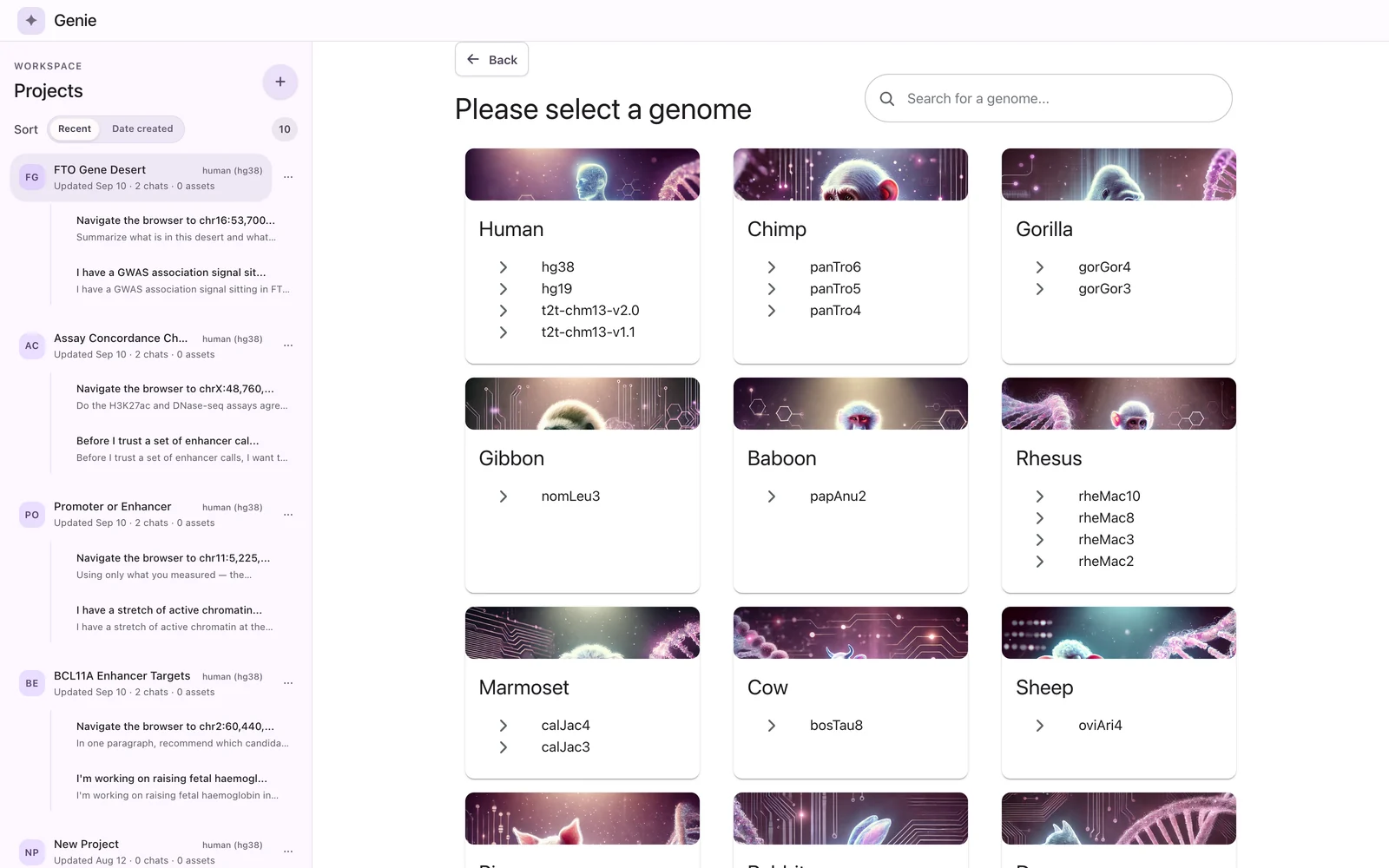
The picker is titled Please select a genome. Each card is a species group (Human, Chimp, Gorilla, Mouse, Rat, and so on) and lists its assemblies. To narrow the list, type in Search for a genome...:
- If your text matches a species name, the whole card is shown.
- Otherwise only the assemblies whose names contain your text are shown, for example
mmshows the mouse assemblies.
Click Back to return to the name field without creating anything.
The picker offers 57 assemblies in 30 species groups. Genie's genome catalog lists 60 assemblies in 31 species groups, but the picker offers only assemblies that the eg3 browser engine can draw; bosTau9, rn5 and GCF_012559485.2 (crab-eating macaque) are left out, which also removes the crab-eating macaque card. The full list is in Genome assemblies.
The genome is fixed per project
You cannot change a project's genome after creating it. The home screen says so under the name field: "To use a different genome later, create a new project with that genome." The project list shows each project's genome next to its title, for example human (hg38).
This also affects saved views. A saved genome view can only be restored into a project with the same genome; trying otherwise shows "This saved view uses a different genome. Create a new project with that genome to restore it." See Export and sharing.
If a project uses an assembly the engine cannot draw, the browser panel shows "Genome '<id>' is not supported by the genome browser engine." instead of tracks.
What a new project starts with
A new project's browser starts at the genome's default region with the genome's default tracks. Both come from the genome catalog.
| Genome | Default region (as shown in the browser) | Default tracks |
|---|---|---|
| hg38 | chr7:27053396-27373765 (HOXA locus) | Ruler, refGene, gencodeV47, MANE selection v1.4, RepeatMasker |
| hg19 | chr7:27053396-27373765 (HOXA locus) | Ruler, refGene, gencodeV47, RepeatMasker |
| mm10 | chr6:52149464-52164219 | Ruler, refGene, gencodeCompVM25, RepeatMasker |
| SARS-CoV-2 | the whole genome, NC_045512.2 | Ruler, NCBI genes, S protein annotations, Sequence Diversity (Shannon Entropy), Viral RNA expression (nanopore), Putative SARS Immune Epitopes, Omicron: B.1.1.529 and BA lineages, Transcription regulatory sequences (TRSs), Protein_domains |
Other genomes have their own defaults, typically a ruler, a gene annotation track and RepeatMasker. For a new project the browser header shows the catalog's locus string unchanged, for example chr7:27053396-27373765 for hg38.
If you remove a default track, you can add it back from the Add Defaults section of the Track Manager. See Adding tracks.
Project list actions
Renaming a project
There are two ways to rename a project:
- From the projects home. Click ⋯ on the project's row and choose Rename. The current name is pre-selected in an input (up to 60 characters). Click Save or press Enter to save; click Cancel or press Esc to keep the old name.
- From inside the project. Click the project title in the top bar. The current name is pre-selected. Enter or the ✓ button saves; Esc, the ✕ button or clicking elsewhere cancels.
An empty name is not accepted.
Deleting a project
Click ⋯ on the project's row and choose Delete. The button turns into Confirm; click it within 2 seconds to delete the project. If you wait longer, or click elsewhere, the button reverts to Delete and nothing is deleted.
Deleting a project removes it from the project list. There is no undo in the app.
Sorting and opening
Use the Sort toggle (Recent or Date created) above the list. With focus outside text fields and buttons, ↑ and ↓ move the selection and Enter opens the selected project.
Where project state is stored
The genome browser's state for a project is saved by the backend whenever you change it. The state contains:
| Field | Meaning |
|---|---|
genomeId | The project's assembly. |
viewRegion | The current locus, as a string and as start/end coordinates. |
tracks | The ordered list of tracks, each with its type, name, URL, height and options. |
hiddenTrackIds | Tracks that are in the project but hidden. |
updatedAt | Last change time. |
The app reads and writes this through GET and PATCH on /projects/<id>/genome. With the local backend, the state is written to projects/<id>/genome/browser-state.json inside Genie's data directory (session-data/ for the local backend, or the desktop app's user-data folder). Other project files live alongside it: the asset catalog in assets/asset-catalog.json, analysis outputs under analysis/, and per-chat data under sessions/. See Configuration for the data directory settings.
Things that are not stored in the project:
- the width of the browser and chat panels (kept in your browser's local storage under
genie.workspace-ui), - the project list sort order (kept in local storage under
genie.project-list-ui).
Changes to the view region are saved after a short pause (about 150 ms) once you stop panning or zooming. Track changes are saved immediately. When the assistant runs a genome tool in a chat, the browser panel reloads the state so you see the tool's changes.