Track settings
You change tracks in a project with three tools:
- the right-click menu on a track, for quick actions,
- the Track Manager sheet, for the full track list and per-track options,
- the Track Inspector sheet, a read-only view of a track's settings and last data request.
All changes are saved to the project immediately. There are no colour pickers or scale controls in the interface; display options such as colours are set as JSON (see Options JSON).
Right-click track menu
Right-click any track in the browser to open its menu.
| Item | What it does |
|---|---|
| Header | The track name, then type · id (for example bigwig · remote-bigwig-k562-h3k27ac-1a2b3c4d). |
| Inspect track… | Opens the Track Inspector for this track. |
| Hide track / Show track | Hides the track (it stays in the project). |
| Move up / Move down | Moves the track one position. Disabled at the top or bottom of the list. |
| Copy track JSON | Copies the track's full definition to the clipboard. The status shows "Track JSON copied". |
| Remove track | Removes the track from the project. |
| More information | Expands to show Type, ID, Height (or auto), the Options and Config JSON, and the Latest Fetch Window when known. |
The menu closes when you press Esc, click elsewhere, scroll or resize the window.
Hidden tracks are not drawn, so you cannot right-click them. Show them again from the Track Manager.
In a shared, read-only view the menu offers only Inspect track…, Copy track JSON and More information.
Track Manager
Open the Track Manager with File → Open Track Manager… (Cmd+Alt+T), or toggle it with View → Show Track Manager / Hide Track Manager (Cmd+Alt+Shift+T).
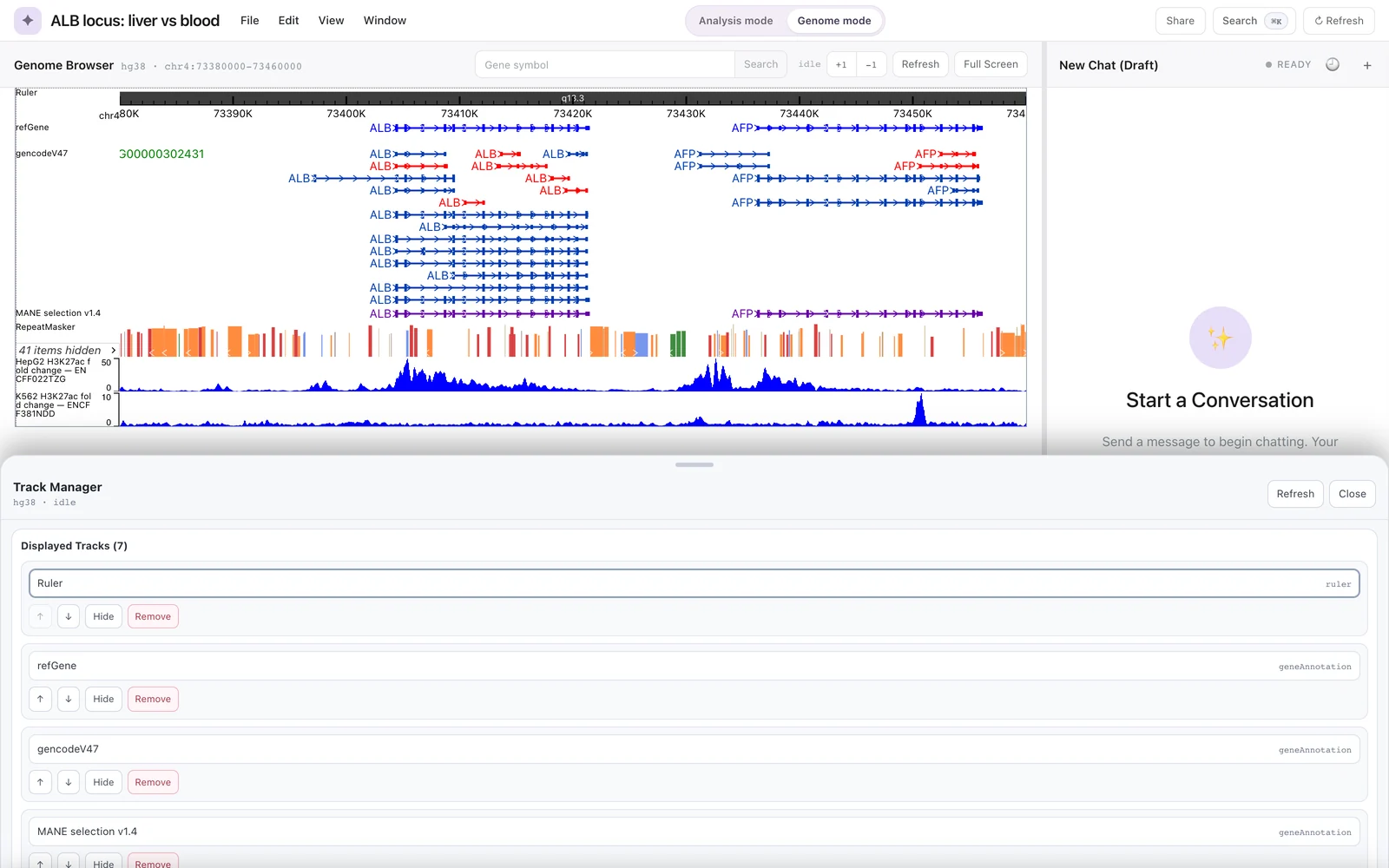 The Track Manager sheet over the genome browser.
The Track Manager is a bottom sheet. Drag the handle at the top to resize it (it snaps to about a third, half, or four-fifths of the workspace height, up to 760 px), or drag it down to dismiss it. Close or Esc also closes it. The header shows Track Manager, the genome and a status word, plus a Refresh button that reloads the track list from the project.
The sheet has three sections.
Displayed Tracks
Displayed Tracks (N) lists every track in the project in display order, including hidden tracks and tracks the engine cannot draw. Each row shows the track name and type, and four buttons:
| Button | Action |
|---|---|
| ↑ / ↓ | Move the track up or down one position. |
| Hide / Show | Hide or show the track. |
| Remove | Remove the track from the project. |
Click a track's name to select it for editing under Track Options.
Remove acts immediately. If you remove a default track by mistake, add it back from Add Defaults. Other tracks must be added again from their source.
Add Defaults
Lists the genome's default tracks that are not in the project. Click one to add it. See Adding tracks.
Track Options
Select a track in Displayed Tracks to edit it here. When no track is selected, the section says "Select a track to edit."
| Field | Notes |
|---|---|
| Name | The track's name. Cannot be empty. |
| Height (px, blank for auto) | A number from 20 to 800. Values outside that range are clamped. Leave blank to use the engine's default height. |
| Options (JSON) | Display options for the renderer, as a JSON object. Leave blank for none. |
Click Save to apply, or Reset to discard your edits and reload the track's current values. If a value is invalid, the status in the sheet header shows one of:
- "Track name cannot be empty"
- "Track height must be a number"
- "Track options must be valid JSON"
and nothing is saved.
Options JSON
The Options JSON is passed to the eg3 renderer together with the track. Genie fills in two keys itself:
| Key | Set from | Meaning |
|---|---|---|
label | the track name, unless the options already contain label | The text drawn as the track's label. |
height | the Height field, unless the options already contain height | The track height in pixels. |
Keys you write in the Options JSON take precedence over these. Two practical consequences:
- Most default tracks already carry a
labelin their options. For example, the hg38 refGene track's options are{"label": "refGene"}. To change the label drawn on such a track, editlabelin the Options JSON, not only the Name field. - A
heightin the options overrides the Height field. Use one or the other.
Example: a taller track.
{
  "height": 80
}
Example: a track with a custom label and height.
{
  "label": "K562 H3K27ac (fold change)",
  "height": 120
}
Any other keys are handed to the eg3 renderer unchanged. Genie does not check them, and which keys each track type understands (colours, scale limits, display modes and so on) is defined by eg3, not by Genie. If an option has no visible effect, the renderer did not use it for that track type.
To see which options a track already has, open More information in its right-click menu, or use Copy track JSON.
The same Options (JSON) field appears in the Remote Tracks dialog, with the placeholder {"height": 80}.
Track Inspector
Choose Inspect track… from a track's right-click menu to open the Track Inspector, a bottom sheet titled Track Inspector with a Close button (Esc also closes it). It is read-only and is mainly useful when a track does not load as expected.
| Section | Contents |
|---|---|
| Track | Name, ID, Type, Height (or auto) |
| Source Details | Where the data comes from, for example the source kind, API base, genome and gene set, when known |
| Fetch Status | Loading (Yes/No), Error, Bases / Pixel, Fetch Window, Last Updated |
| Last Request | Method, endpoint and request parameters of the most recent data request, when captured |
| Options | The track's options JSON |
| Config | The track's config JSON |
| Source Metadata | Metadata reported by the data source |
| Request Details | Raw details of the last request |
| Fetch Window | The region last fetched |
| Fetched Data | A preview of the data received |
With the eg3 engine, some of these fields are not filled in and show messages such as "No request captured yet." or "No source metadata available.".
What the assistant can change
The assistant can add tracks (see Adding tracks), but it does not reorder, resize, hide or restyle tracks. Tools for authoring or editing custom tracks are declared unavailable in the current version. Use the Track Manager for these changes.